AI assistant for sales calls, invisible on screen
Cue listens to both sides, tracks objections, and gives you the right answer before the silence stretches.
Last updated:
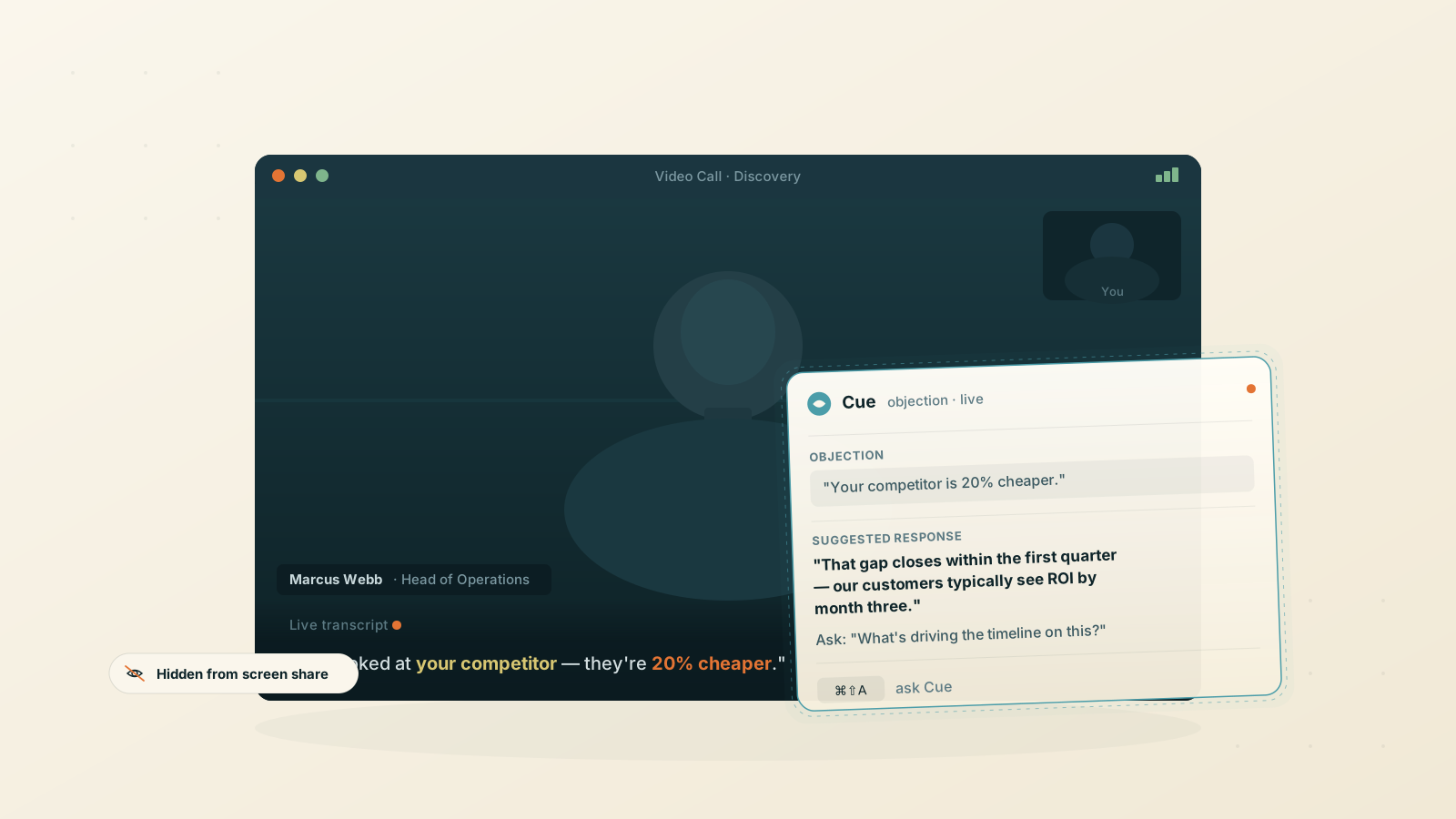
The moment that costs you the deal
A prospect says something you weren't expecting. A competitor's name comes up. A pricing question lands and you know the answer is somewhere in the deck, but not where.
You have about three seconds before the silence starts doing damage. Pulling up a browser tab or a notes window is visible to anyone on the call. Asking to "circle back on that" works once. The second time, it signals that you don't know your own product.
An AI assistant for sales calls gives you a third option: a real-time answer in an invisible panel sitting above the call, visible only to you.
How Cue helps
1. Open Cue before the call
Launch Cue and start your video meeting or dial in as normal. The overlay sits above every window on your Mac without appearing in screen shares, recordings, or the prospect's view. See the supported platforms page for the conferencing tools we have verified.
2. Cue transcribes both sides
As the call runs, Cue captures your microphone and the prospect's audio, speaker-labeled, in real time. The live transcript stays on screen so when a stakeholder joins late and asks what has been covered, you can check the exact words rather than paraphrase from memory.
3. Ask on demand when it counts
When an objection lands, press the hotkey. Cue reads the full conversation context and the most recent question together, then streams a response in under a second. You can start reading while it finishes, form your own phrasing, and answer without a gap.
4. Attach a screenshot for reference material
If your pricing sheet, a proposal, or a competitor comparison is on screen, capture it with one keystroke. Cue reads the content alongside the live transcript, and its answer is grounded in both. The same screenshot context works on slides, product diagrams, and shared documents.
Set a custom system prompt for your calls
Cue lets you save a custom system prompt per scenario, so its responses are shaped to the call before it starts. For a sales call, the prompt sets how the AI frames its answers: brief, commercial, centered on value rather than features.
Here is one you can paste in and adapt:
You are a sales assistant on a live B2B discovery call. Help me respond to the prospect in real time.

## Objection handling
- When the prospect raises a concern, give me a 1–2 sentence response that acknowledges the concern and pivots to value.
- Do not over-promise. If the answer is uncertain, say 'I'll confirm that after the call.'

## Competitive questions
- If a competitor comes up, give me one differentiating point based on what I've said about our product so far.
- Don't disparage. Just contrast.

## Pricing
- If pricing comes up without context, prompt me to clarify their budget and timeline before I commit to a number.

## Format
- Keep all responses to 3 sentences or fewer unless I ask for more.
- Use plain English. Assume the prospect can see my face.
Save it once and switch to it from the menu before each call. You can create a separate profile for enterprise calls, renewal conversations, or specific product lines.
Quick actions sit alongside the prompt: pre-saved buttons like "handle this objection", "what should I ask next", or "summarize what they need". One click, no typing mid-call.
What Cue covers, call type by call type
Different call types reward different things. Cue is built to hold up across all of them.
Discovery calls
A discovery call is mostly listening. Cue tracks what the prospect has said and feeds it into every response it suggests. Ask "what should I ask next?" and the answer is grounded in the pain they have already described, not a generic script.
Handling objections live
Price, timing, and "we already have a tool for that" all land without warning. Cue hears the objection in the transcript and gives you a grounded response shaped to what the prospect actually said, not a pre-rehearsed deflection. The AI assistant for sales calls works because it has the full conversation in context, not just the last sentence.
Demo calls
Screen sharing is active on a demo call. Cue stays invisible while you share. If a prospect asks a technical question mid-demo, capture the screen and Cue reads what is on it together with the question, then answers based on both.
Competitive comparison questions
When a competitor's name comes up, press the shortcut. Cue surfaces a contrast based on the context you set in your system prompt, without switching tabs, opening another window, or losing the thread of the conversation.
What Cue won't do
A few honest limits.
- It won't close the deal for you. The prospect reads your confidence and body language throughout. Read Cue's answer, form your own response, and say it in your voice.
- It won't pull live data from your CRM or pricing system unless you paste that information into your system prompt or share it on screen. What it knows comes from the call and what you feed it.
- It won't bypass platform-level monitoring. The overlay is hidden from macOS screen capture, but environments with installed monitoring or compliance software are outside what we can verify. Check the supported platforms page and confirm what your organization allows before relying on it.
- It won't work offline. Live transcription and AI responses both need a working internet connection.
- It won't run on Windows or Linux. The stealth overlay uses macOS-native APIs.
Call transcripts and chat history are saved locally on your Mac. Nothing from your sales calls is stored on our servers.
Who uses it
- Account executives who run five or more calls a week and want a safety net for the objections they can't fully predict.
- SDRs handling discovery calls across multiple verticals who can't memorize every competitive angle.
- Consultants and freelancers on client calls who need to stay present in the conversation while keeping accurate notes.
The free trial covers two hours of transcription and fifty AI messages a month. That is enough for a handful of live calls before you decide. The full AI assistant for sales calls is macOS-only; download Cue and try it on the next call that matters, or browse other use cases to see where else it fits.
FAQ
Can the prospect see Cue during a screen share?
No. The overlay is hidden from macOS screen capture, so it never appears in a shared window, a recording, or on the prospect's screen.
Does it work on demo calls where I'm sharing my screen?
Yes. Cue stays invisible while you share. If a question comes in mid-demo, you can capture the screen with a keystroke and Cue reads what is on it alongside the live transcript before answering.
How fast does it respond when an objection lands?
Under a second for short answers. Longer responses stream as they generate, so you can start reading before they finish.
Will my sales calls be recorded or stored?
No. Audio is processed for transcription in real time and never saved to our servers. The transcript and chat history are stored locally on your Mac only.
Is using an AI assistant on a sales call allowed?
That depends on your organization and the context of the call. Cue doesn't ship policy guidance. Check what your employer and any relevant regulations allow before relying on it in a monitored environment.
Can I set it up differently for enterprise calls versus SMB calls?
Yes. Cue supports multiple saved system prompts, so you can switch profiles before a call depending on the deal type, product line, or segment.
What if I don't know the answer even with Cue's help?
Tell the prospect you will confirm after the call. Cue's system prompt can be set to suggest that exact response when the answer is uncertain, so you handle it cleanly rather than guessing.
Ready to try Cue?
Download for macOS and have the invisible AI overlay running in under two minutes. Free to get started — no card required.
Requires macOS 13 Ventura or later