Real-time AI assistant for salary and contract negotiations
Cue follows both sides of the negotiation and gives you the counter-argument before the silence gets uncomfortable.
Last updated:
The moment that costs most people money
Salary and contract negotiations reward whoever can recall their preparation under pressure. Most people can prepare; far fewer can do it at the moment that counts.
When a recruiter delivers a number below your range and waits in silence, the research you did the night before feels distant. You accept something close to their opening number, then spend months replaying the call.
Contract negotiations carry the same trap. A client adds a clause that shifts payment terms. A procurement manager asks you to justify your day rate on the spot. Without the right language available at that moment, most people concede, or agree to revisit it. Revisiting it means starting from a weaker position.
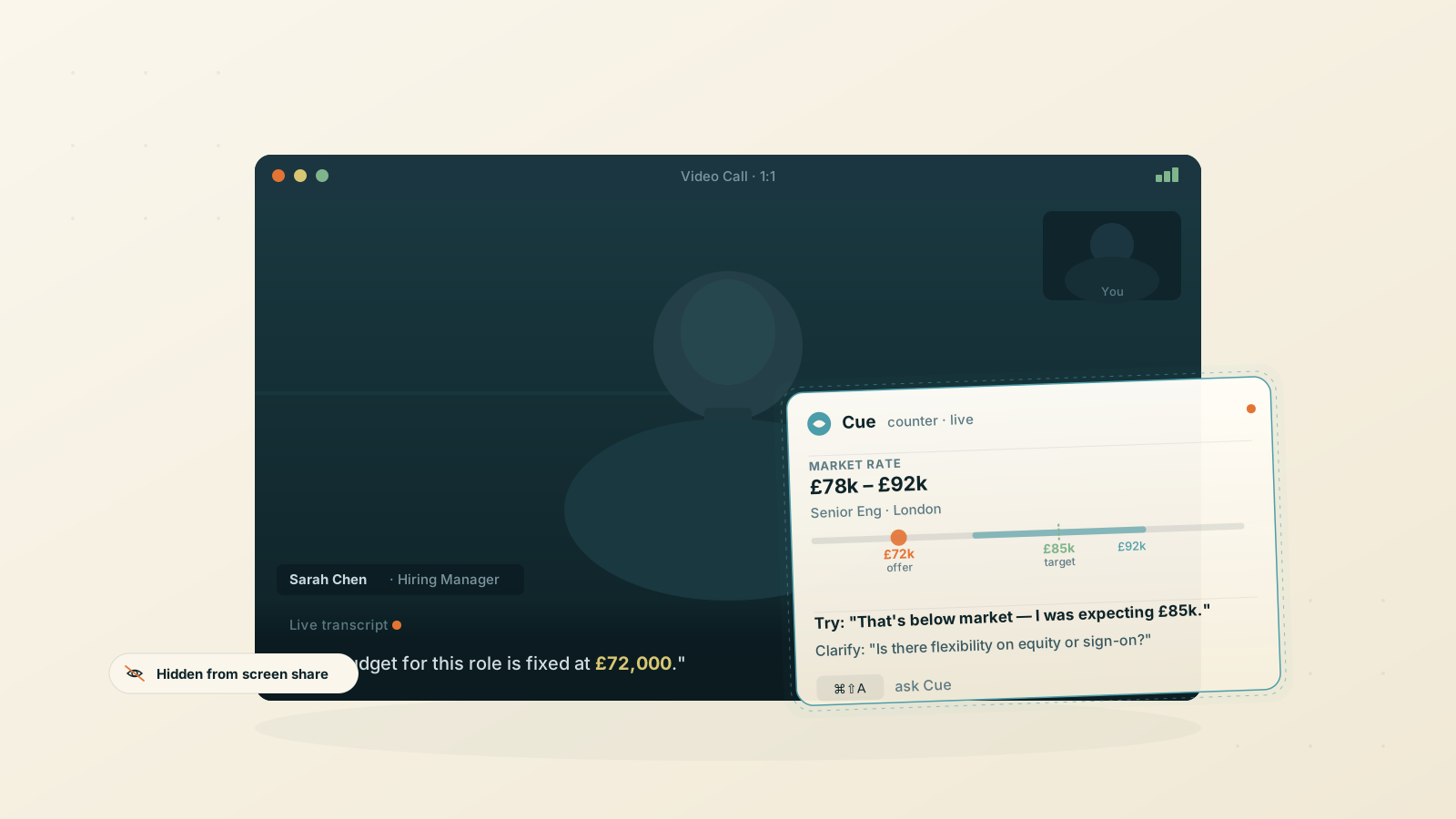
Cue is a real-time AI assistant for salary and contract negotiations. It listens to both sides of the conversation, follows the thread, and surfaces counter-arguments and data on demand — visible only to you, invisible to everyone else on the call.
How Cue works in a negotiation
1. Open Cue before the call
Launch the overlay and begin your video call as normal. The floating panel sits above every app on your Mac and is excluded from macOS screen recording, so it won't appear in the other party's recording or on your shared screen.
2. Let it follow both sides
Cue captures your microphone and the other party's audio in real time. As the conversation moves, the live transcript updates on screen. You can re-read what was said without interrupting to ask for clarification.
3. Ask when the pressure hits
When an offer lands or an objection comes in, press the shortcut key. Cue reads the full conversation up to that point and responds with a counter-argument, a reframe, or a clarifying question. You don't need to type a detailed prompt; the context is already there.
4. Screenshot a term sheet or contract
If the other party shares a document on screen, capture it with one keystroke. Cue reads the visible text alongside the live conversation and flags clauses worth questioning.
Set a custom AI profile for your negotiation
Cue's AI profiles let you define what the assistant should focus on before the conversation starts. For salary discussions, that means your target range, your walk-away point, and the framing you want when you're pushed.
Here is a starting point you can paste in and adapt:
You are a negotiation coach advising me in real time during a salary or contract negotiation.

My target: [X]. My minimum: [Y]. Current offer (if any): [Z].

When I ask for help:
- If an offer is made, suggest a calm, specific counter that moves toward my target.
- If I'm asked to justify my ask, frame it around market rates and the value I bring.
- If I'm being pressured to decide immediately, suggest a response that buys time without losing the deal.
- Keep responses short. One or two lines I can say aloud, not a paragraph to read.

Do not suggest accepting below my minimum without flagging it.
Save it once and select it from the menu before the call. Every response in that session follows the rules you set.
Quick actions sit alongside the profile: pre-saved buttons like "suggest a counter", "ask for time to review", or "reframe my ask" take a single click. No typing mid-call.
Salary negotiations, rates, and contract talks
The pressured moment looks different depending on the conversation, but the problem is the same in each.
Salary negotiation
An offer comes in low. The silence that follows is where most candidates lose ground. Cue surfaces a specific counter with a brief rationale drawn from everything the recruiter has said in the call, not a generic script, but a response grounded in the actual conversation.
Freelance and consulting rates
Clients often push back on rates when the contract arrives, not during the pitch. Cue helps you hold your position with language that addresses their objection directly, rather than a vague pause followed by a discount.
Procurement and vendor discussions
Procurement managers apply structured pressure. A request to drop your price at the eleventh hour, a change to payment terms, a scope addition framed as a small favor. Having a real-time AI for contract negotiations on hand means you can respond with something considered rather than a concession.
What Cue won't do
A few honest limits worth knowing before you rely on it:
- It won't negotiate for you. Cue surfaces the right counter; you still have to say it in your own voice. Reading it verbatim will sound scripted.
- It won't know current salary benchmarks for your role or region unless you add them to your system prompt. Feed it the data before the call.
- It works with audio that routes through your Mac. A standard mobile phone call without any conferencing app on your computer is outside scope.
- It won't work against employer-installed monitoring software. Cue is invisible to macOS screen capture, but installed monitoring tools sit at a different level. If you are in a monitored environment, check what applies before relying on it.
- It is macOS-only. The stealth overlay relies on macOS-native capabilities and won't run on Windows or Linux.
- Live transcription and AI responses both need an internet connection.
What you produce in Cue stays on your Mac. Nothing is stored on our servers.
Who uses the salary negotiation AI assistant
- Job seekers negotiating compensation packages for roles where a few thousand pounds per year compounds significantly over a career.
- Freelancers and consultants who face rate pushback regularly and want a specific response rather than an awkward pause.
- Procurement professionals on the buyer side who want to track what has already been agreed and keep a negotiation on script.
The free trial covers two hours of transcription and fifty AI messages a month. That covers several negotiation calls before you need to decide. Download Cue before your next offer conversation, or browse other use cases to see where else the AI assistant fits.
FAQ
Can the other party see Cue during the call?
No. The overlay is excluded from macOS screen recording, so it won't appear in a shared screen, a recording, or a screenshot the other party takes.
Does Cue know salary benchmarks for my role?
Not automatically. Add your target range and any market data you have researched to your system prompt before the call. Cue then factors that information into every response during the negotiation.
How fast does it respond when I press the shortcut?
Under a second for short answers. Responses stream as they generate, so you can start reading before they finish.
Does it work on phone calls?
It works with audio that routes through your Mac — video calls, VoIP apps, and conferencing software. A standard mobile phone call not using your Mac's audio is outside scope.
Is using Cue during a negotiation allowed?
There are no standard rules against using reference material during an informal negotiation call. The norms vary by context. Check what your employer or the other party expects and decide for yourself.
Where does the transcript go after the call?
It stays on your Mac. Nothing is stored on Cue's servers. Transcription history is saved locally and is only accessible to you.
Can I use it to review a contract document outside of a live call?
Cue is built for live conversations. For a document review outside a call, you can paste key clauses into the message box and ask Cue directly. The live transcription context is most useful when the other party is on the call.
Ready to try Cue?
Download for macOS and have the invisible AI overlay running in under two minutes. Free to get started — no card required.
Requires macOS 13 Ventura or later