AI assistant for technical interviews, invisible on screen
Cue listens to the interviewer, watches your screen, and gives you a nudge when you need one.
Last updated:
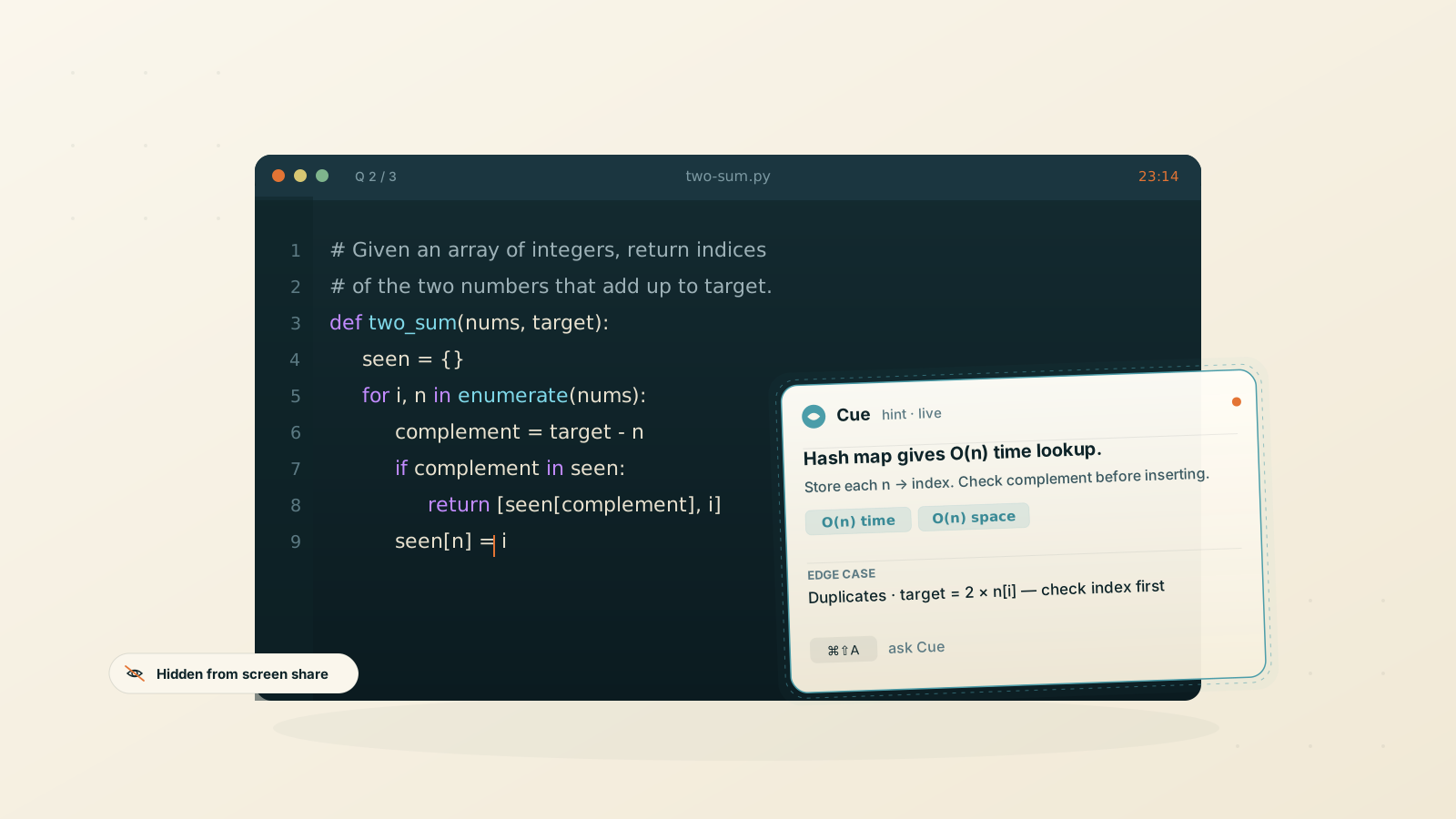
The challenge
Technical interviews punish blank moments. You know the topic, but the question lands sideways, the clock keeps moving, and the interviewer is waiting.
Switching tabs to look something up is obvious. Asking for the question to be repeated buys ten seconds at most. Most candidates lose rounds not because they lack the knowledge, but because they freeze for forty seconds in front of a stranger.
An AI assistant for technical interviews fixes that gap. You stop searching for syntax in your head and start solving the actual problem, with a quiet prompt sitting an eye-flick away.
How Cue helps
1. Open Cue before the call
Launch Cue and start your video meeting as normal. The stealth overlay sits above the meeting window without showing up in screen shares or recordings. See the supported platforms page for the meeting apps we have verified.
2. Let it transcribe both sides
Cue captures the interviewer's audio and yours in real time, including technical jargon, library names, and accents. The live transcript stays on screen so you can re-read the question instead of asking for it twice.
3. Press the shortcut when you stall
Hit the hotkey and Cue answers the most recent question, grounded in everything the interviewer has said so far. Responses begin streaming in under a second, so you can start reading while it finishes.
4. Attach a screenshot for code questions
If the question is on a shared editor, capture the screen with one keystroke. Cue reads the code, the error, and the prompt together with the live conversation, then suggests an approach. The same screenshot context works on whiteboards and architecture diagrams.
Set a custom system prompt for the round
Cue lets you save a custom system prompt per scenario, so its responses are shaped to the round before the round starts. For a technical interview, the prompt sets tone, depth, and what to leave out.
Here is one you can paste in and adapt:
Act as a candidate in a technical interview for a software role.

## If Given a Coding Challenge

### 1. Problem Analysis
* a) rephrase the core problem covering some edge cases.
* b) state the simplest, but perhaps not most efficient approach. e.g. bruteforce.
* c) state the best approach. e.g. sliding window.

### 2. Implementation (Python)
* a) provide a complete and correct Python solution. (based on 1c)
* b) add a short, clear comment ABOVE each code line.

### 3. Deeper explanation.
- a) justify your approach and decisions.
- b) explain on a high level how your code solved the problem.

**IMPORTANT!: avoid unnecessary code complications like list comprehension.**
Save it once and switch to it from the menu before the call. Every Cue response in that session follows the rules you set, grounded in what the interviewer just asked and what is on your screen.
Quick actions sit alongside the prompt: pre-saved buttons like "explain my code", "what edge case did I miss", or "give me a one-line cleanup". One click, no typing. When you do want to type, the human message box is there too. Cue answers either way.
What Cue covers, round by round
Different rounds reward different things. Cue is built for the four most common.
Coding interview rounds
A coding interview is mostly recall under pressure. Cue suggests the right data structure when you blank, walks through complexity when the interviewer asks, and spots edge cases you'd otherwise miss. It works on LeetCode-style problems, debugging exercises, and language-specific syntax in Python, JavaScript, TypeScript, Go, Rust, Java, C++, C#, Swift, Kotlin, Ruby, and SQL.
System design interview rounds
A system design interview rewards structure. Cue holds the constraints you and the interviewer have already discussed (scale numbers, latency targets, consistency requirements) and feeds them back into every follow-up. Ask for trade-offs between two databases, a caching strategy, or a way to handle a region failure, and the answer assumes the constraints you set five minutes earlier.
Behavioral rounds
Behavioral questions reward shape, not novelty. While the interviewer talks, Cue quietly drafts a STAR-shaped answer (situation, task, action, result) using what you've already said in the call. You read the outline, pick the right anecdote, and tell it in your own voice.
Take-home review
Some interviews end with a "walk me through this code you wrote." Screenshot the file, ask Cue what it would highlight, and you have a starting line for the conversation.
What Cue won't do
An AI assistant for technical interviews is a starting point, not a substitute. A few honest limits:
- It won't make a slow delivery sound like an expert. The prompt buys you a starting line, not a presentation. If you read it word for word, the interviewer hears it.
- It won't bypass platform-level proctoring. Cue is hidden from macOS screen capture, but environments with installed proctoring software are out of scope. Check the supported platforms page for what we have verified, and confirm what your employer or interviewer allows before relying on it.
- It won't work without an internet connection. Live transcription and AI responses both need a working network.
- It won't run on Windows or Linux. Cue is macOS only by design; the stealth overlay relies on macOS-native APIs.
What Cue does keep is yours. Transcripts and chat history are saved locally on your Mac. Nothing is stored on our servers.
Who uses it
- Software engineers running five interviews a week who want a safety net for the rounds that matter.
- Career switchers moving between stacks who know the concepts but stumble on unfamiliar syntax under pressure.
- Returners after a long break who need a memory jog on algorithms they last touched years ago.
The free trial covers two hours of transcription and fifty AI messages a month, enough for a handful of mock rounds before you decide. The full AI assistant for technical interviews lives on macOS; download Cue and try it on the next round, or browse other use cases to see where else it fits.
FAQ
Can the interviewer see Cue?
No. The overlay is hidden from macOS screen capture, so it never appears in a shared window, a recording, or a screenshot the interviewer takes.
Does it work for system design questions?
Yes. Cue holds the full conversation in context, so when you ask for help on a design question it has already heard the constraints, the scale numbers, and the requirements you discussed.
What languages does it understand?
Whatever the underlying model supports. In practice that covers Python, JavaScript, TypeScript, Go, Rust, Java, C++, C#, Swift, Kotlin, Ruby, and SQL with no special setup.
How fast is the response?
Under a second for short answers. Longer code suggestions stream as they generate, so you can start reading before they finish. Live transcription updates in real time.
Will using Cue feel obvious to the interviewer?
Only if you read responses out word for word. Treat it as a prompt, not a script. Pause, take a breath, and answer in your own phrasing.
Is this allowed?
That depends on the company and the role. Some interviews explicitly permit reference material, others don't. Cue doesn't ship policy guidance; check what your interviewer or employer allows and decide for yourself.
Ready to try Cue?
Download for macOS and have the invisible AI overlay running in under two minutes. Free to get started — no card required.
Requires macOS 13 Ventura or later